Welcome, DJ
DJ Console is the macOS menu bar app that shares what you're spinning in real-time. Setup is quick. Install, create your DJ profile, and start sharing. Questions? Jump to the FAQ.
Requirements


Download & Install
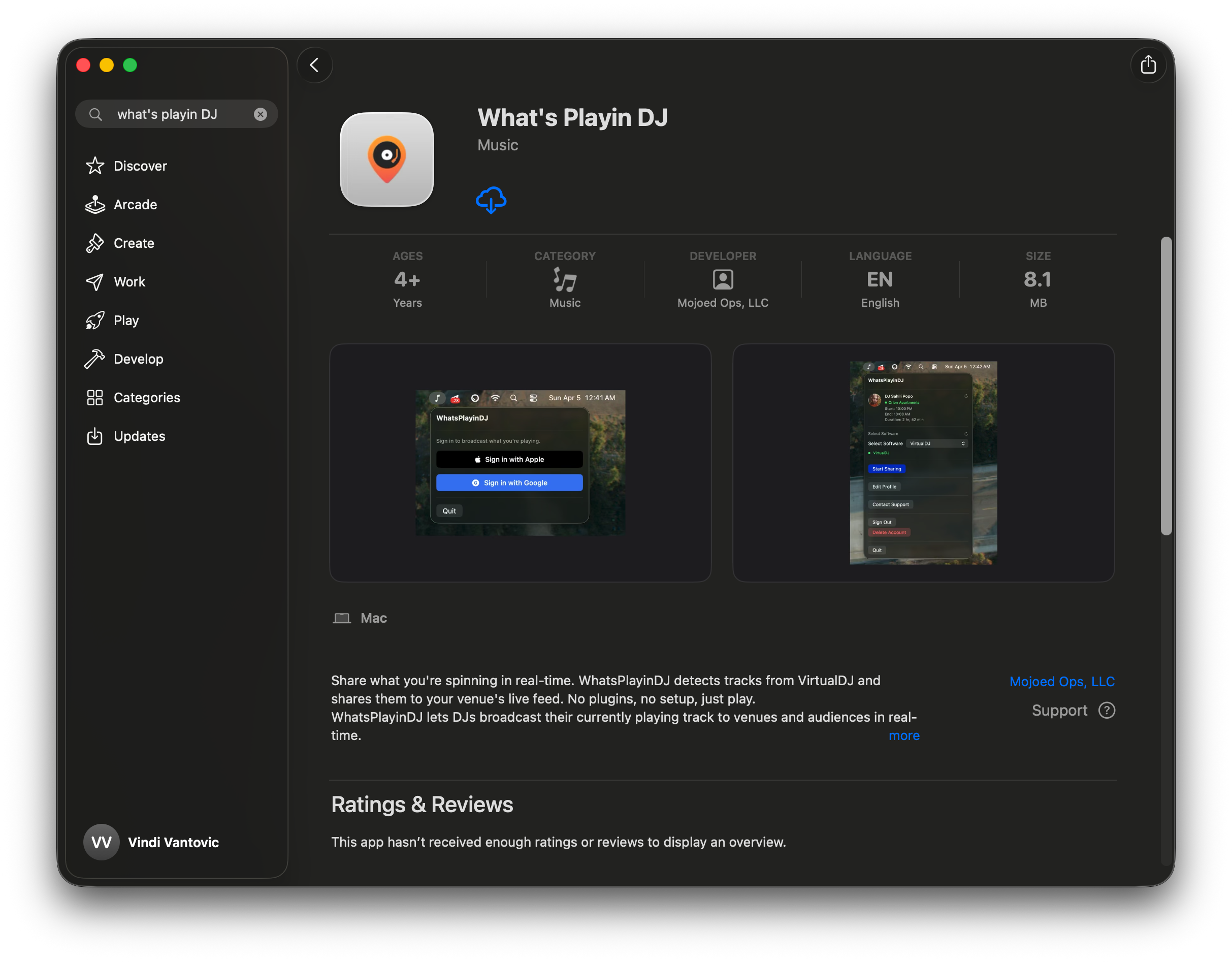
DJ Console is available on the Mac App Store. Install takes about 30 seconds.
- Click Download for Mac to open the App Store listing.
- Click Get (or Install) and confirm with your Apple ID.
- Once installed, open What's Playin DJ from your Applications folder (or Launchpad). No window will appear. DJ Console runs entirely from the menu bar.
After opening, look in the menu bar at the top right of your screen. The DJ Console icon is a small music note. Click it to reveal the app.

Sign In
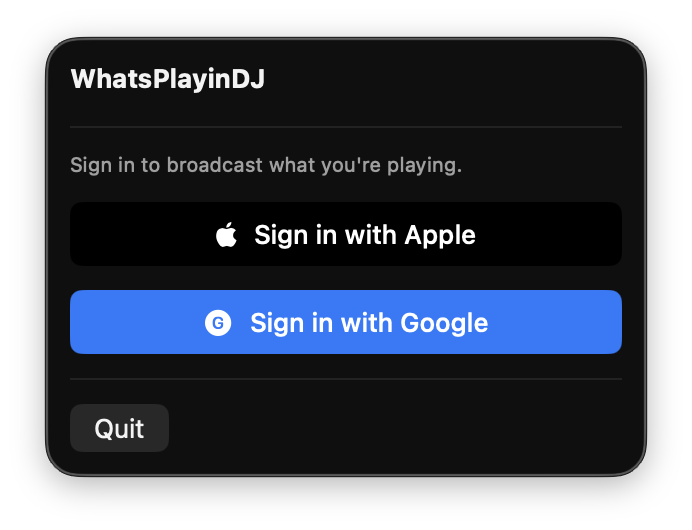
Click the menu bar icon to open DJ Console. On first launch you'll see the sign-in screen. Choose Sign in with Apple or Sign in with Google. We use these providers to identify your DJ profile and user. Use the same account you signed in with on the mobile app for the best experience.
Create Your DJ Profile
After signing in, click Set Up Your Profile. Fill in the following:
- DJ Name. The name users and venues will see.
- Profile Photo. Upload, crop, and zoom to get it right.
- Bio. A short description of your style, genres, or residency.
- Social Links. Add your Instagram, TikTok, SoundCloud, or other handles so users can find you.
Once submitted, your profile goes to review. Open the app to check your approval status.
Venue Assignment
Venue assignments tell us who is performing at what location and for what time slot. They're what tie your set to a venue so your tracks reach the right audience.
Currently this is a manual process (self-assignment coming soon). To get assigned, email [email protected] with the venue name, your set start and end times, and the email you signed in with.
The Basement — Fri Apr 25, 2026
9:00 PM – 10:30 PM — DJ Nova ([email protected])
10:30 PM – 12:00 AM — DJ Kael ([email protected])
12:00 AM – 2:00 AM — DJ Rhea ([email protected])
Once assigned, you'll see the venue name in the menu bar app. If anything looks wrong, contact support to fix it.
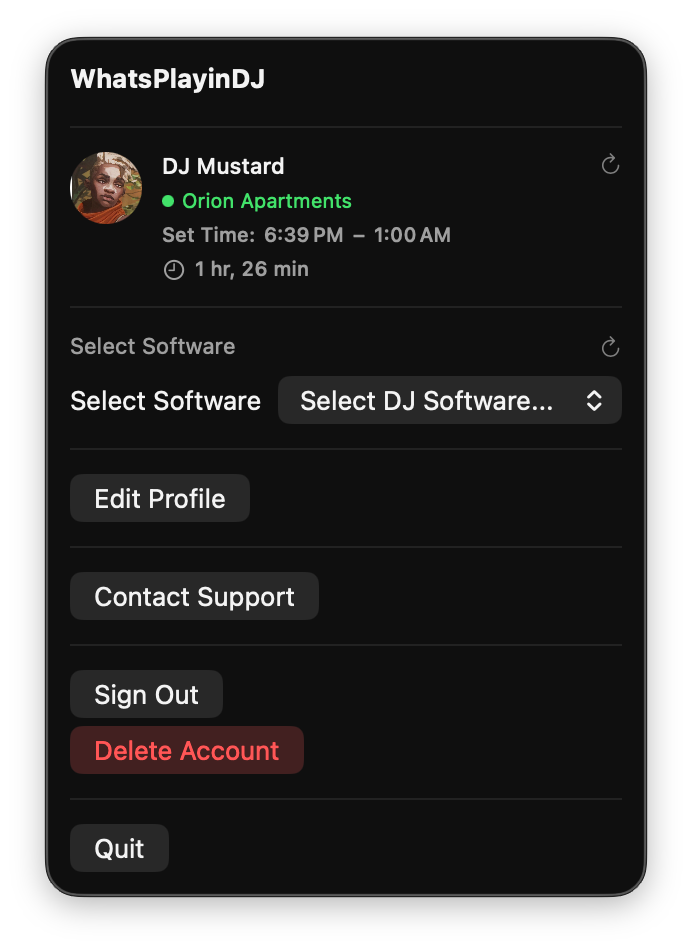
Why it matters: when you have a venue assignment, the tracks you share during your set are associated with that venue. They feed into the What's Playin mobile app, so when a user opens the app and taps the venue, they see your live track feed.
Going Live at the Venue
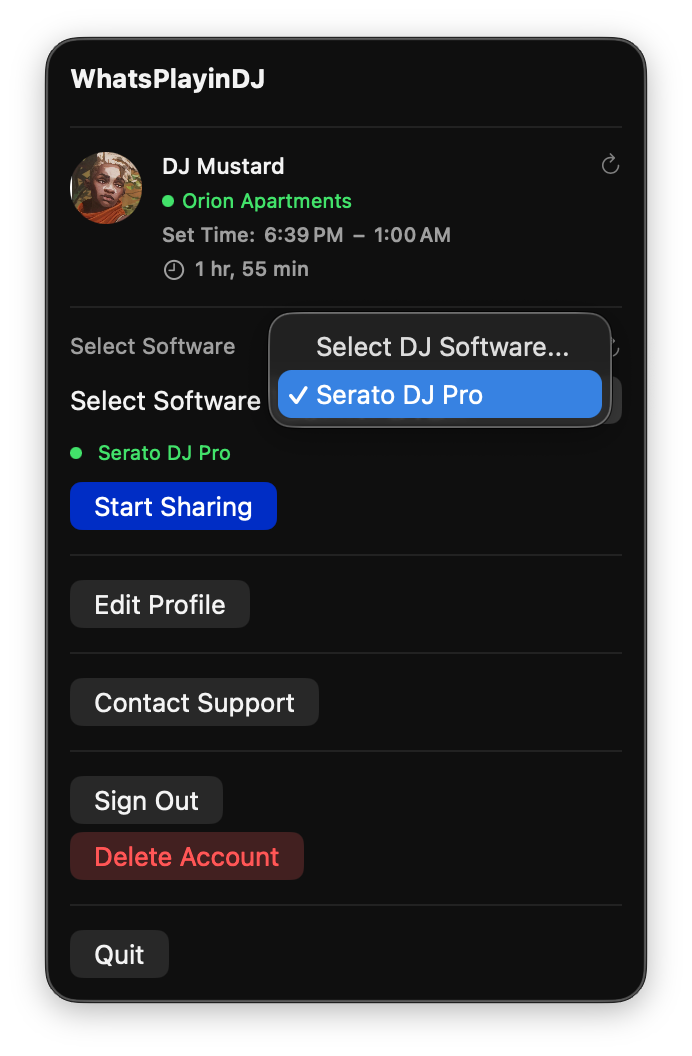
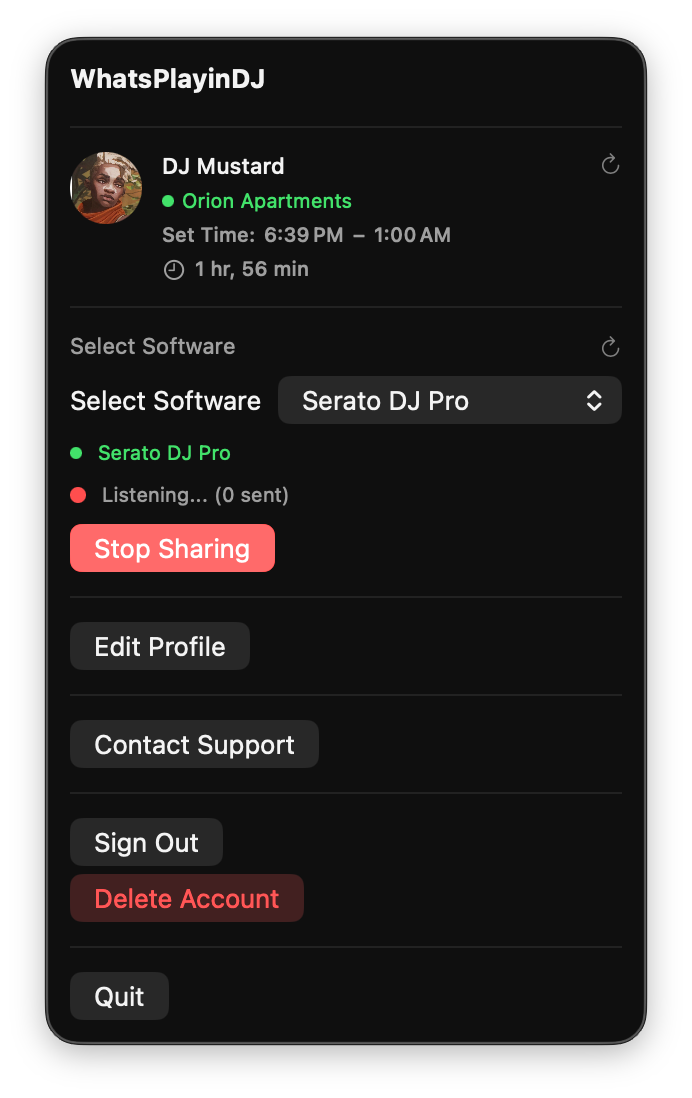
When you arrive at the venue, open DJ Console from the menu bar, select your DJ software, and start broadcasting. The flow is the same whether you use VirtualDJ, Rekordbox, or Serato.
- Select your DJ software from the dropdown. DJ Console auto-detects whichever app you have running.
- Click Start Sharing to begin broadcasting your set.
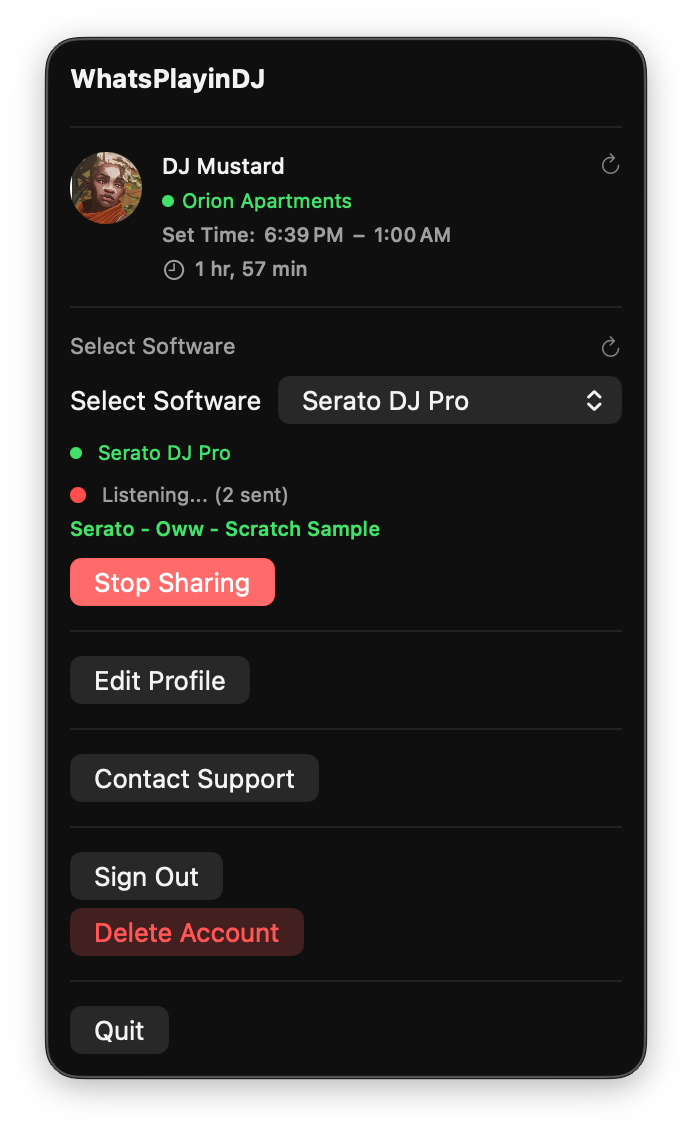
- As you play, tracks appear in the app and feed live to the venue's audience on the mobile app.
- Click Stop Sharing at the end of your set.
Once You're Live
When broadcasting is active, the menu bar icon shows a small red dot. If you see the red dot, you're live.

What Users See
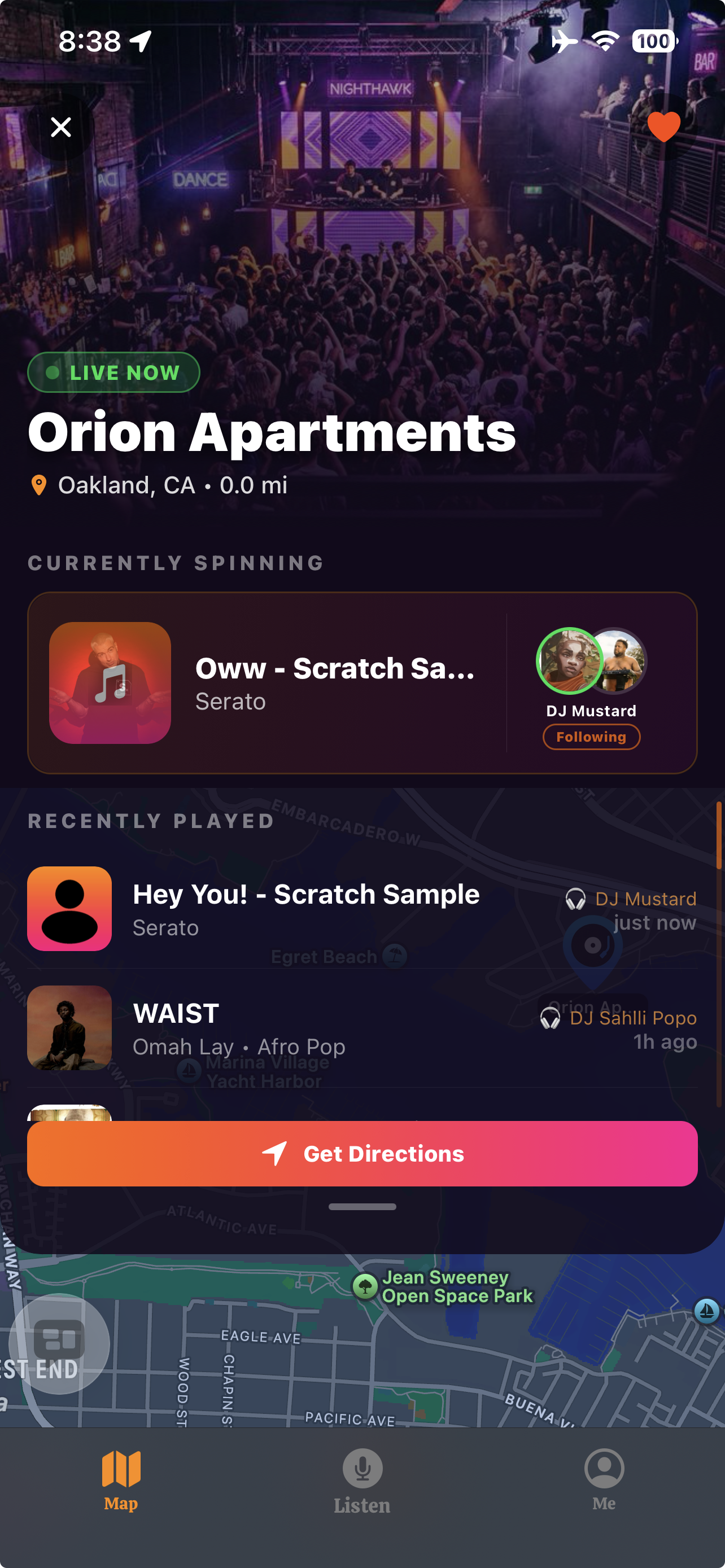
While you broadcast, users who open the What's Playin mobile app and tap your venue see your live track feed in real-time.
Troubleshooting
FAQ
Data & Privacy
What's Playin spans two products. Each handles data differently, and we want to be clear about both.
The mic is active only when the user grants permission and taps a mic action button. We use audio to identify what's currently playing, similar to Shazam. Audio is processed securely for recognition and not stored beyond what's needed.
Used to power location-based features like nearby venues and reactions. You can use the app without granting location, with reduced functionality.
We crowdsource recognized music to give every user a real-time view of what's playing at venues. We also use anonymous device info to improve app performance.
Strictly limited to your DJ software's feed/history file (VirtualDJ tracklist, Rekordbox database, or Serato history). We read only the song metadata — artist, title, timestamp.
Only the text data above (artist, title, timestamp). No audio is captured or transmitted. Data is associated with your DJ profile and the venue you're assigned to.
To feed your live track history to the venue's audience on the mobile app, and to maintain your set history.
You can delete your account and remove all associated data, or request a copy of your set history at any time. Set history is kept for 30 days by default. We may extend retention if your set data is sparse, to ensure venues have meaningful history.
For full details, see our Privacy Policy.
Support
Stuck? Got feedback? Want to request a feature? We'd love to hear from you.
Email us at [email protected]. We typically respond within 1–2 business days.
When emailing about an issue, please include:
- Your DJ name (or the email you signed in with)
- Which DJ software you're using (VirtualDJ, Rekordbox, Serato)
- macOS version
- A short description of what you were doing when the issue occurred
- Screenshots if possible
You can also visit our general support page for non-DJ-related questions.